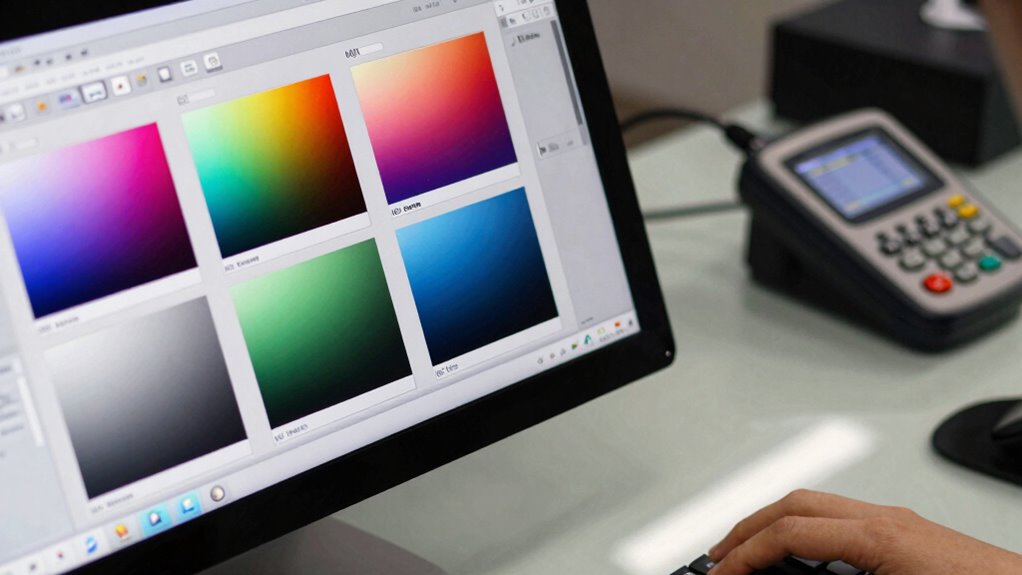

ICC profiles are hidden files that control how your devices interpret colors, guaranteeing your digital images match your printed output accurately. They help manage color consistency across monitors, printers, and cameras, preventing unwanted color shifts. By properly installing and calibrating these profiles, you can achieve professional-quality results. If you want to learn more about how these invisible files ensure vibrant, true-to-life prints, keep exploring the details behind ICC profiles.

Prime made for students and young adults
- Fast, free delivery for dorm and study essentials
- Prime Video and Amazon Music included
- Member-only deals
Key Takeaways
- ICC profiles are small files that define how colors are interpreted and reproduced across devices.
- They ensure color accuracy and consistency between monitors, printers, and cameras.
- Installing correct profiles for your device helps achieve vibrant, true-to-color prints.
- Profiles act as color maps, translating digital data into device-specific color outputs.
- Regularly updating ICC profiles prevents color shifts and maintains print quality.
As an affiliate, we earn on qualifying purchases.
What Are ICC Profiles and How Do They Influence Color
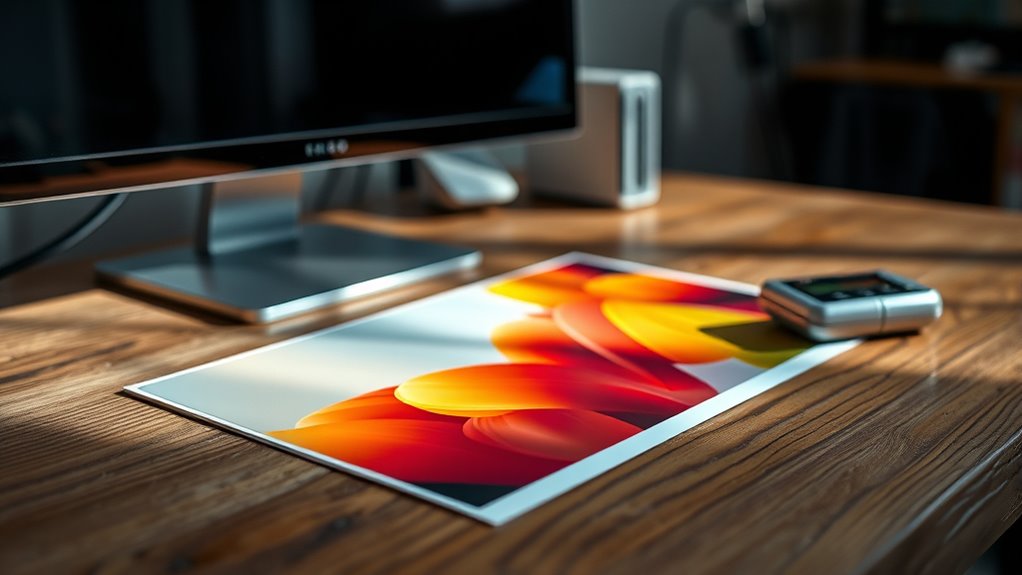
ICC profiles are indispensable tools that manage how colors are displayed and printed across different devices. They guarantee color consistency, so your images look the same on monitors, printers, and cameras. When you customize a profile, you’re tailoring how colors are interpreted by each device, which helps maintain accuracy. Profile customization allows you to adjust settings for specific workflows, ensuring that colors stay true to your original intent. Without ICC profiles, colors can shift or appear inconsistent between devices, making your work unreliable. By assigning the right profile to each device, you control how colors are rendered, giving you confidence that your prints and displays match your vision. This process is crucial for achieving professional-quality results in any color-sensitive project. Color management ensures that your visual outputs meet industry standards and personal expectations. Properly calibrated profiles also help mitigate issues related to color accuracy, device limitations, and color inconsistencies, further enhancing your overall workflow. Additionally, understanding and utilizing ICC profiles can significantly reduce trial-and-error in color correction, saving both time and resources. Recognizing how device calibration influences profile effectiveness can further improve your color results.
As an affiliate, we earn on qualifying purchases.
How ICC Profiles Help You Manage Colors Accurately
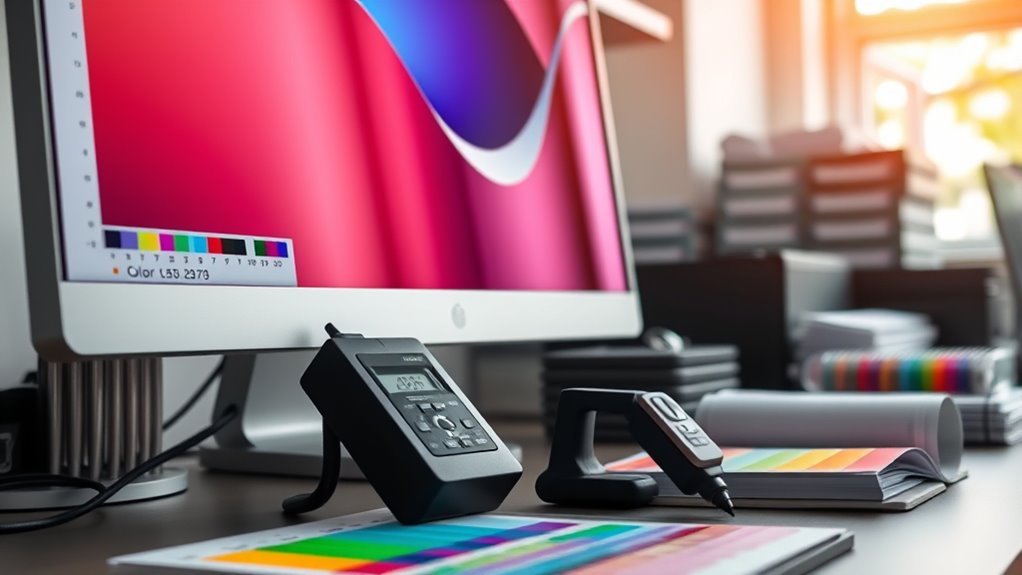
By using ICC profiles effectively, you can guarantee that colors remain consistent and accurate across your devices. They enable precise profile calibration, ensuring your monitor, printer, and scanner all interpret colors the same way. Proper content clarity helps users better understand and utilize these profiles, reducing errors. This alignment minimizes discrepancies and maintains color consistency from digital design to physical print. When profiles are properly applied, you avoid unwanted color shifts, saving you time and materials. ICC profiles act as a color map, translating color data accurately between devices. This process helps you achieve predictable results, whether you’re editing photos, designing graphics, or printing artwork. Additionally, understanding device calibration ensures your entire workflow maintains color fidelity. Recognizing the importance of color management can significantly streamline your creative process. Employing accurate color profiles ensures that your work looks consistent across all media, making your prints truly reflect your original vision. Ultimately, proper profile management empowers you to control color fidelity, making sure your creative vision translates perfectly every time.
As an affiliate, we earn on qualifying purchases.
Different Types of ICC Profiles for Devices and Monitors
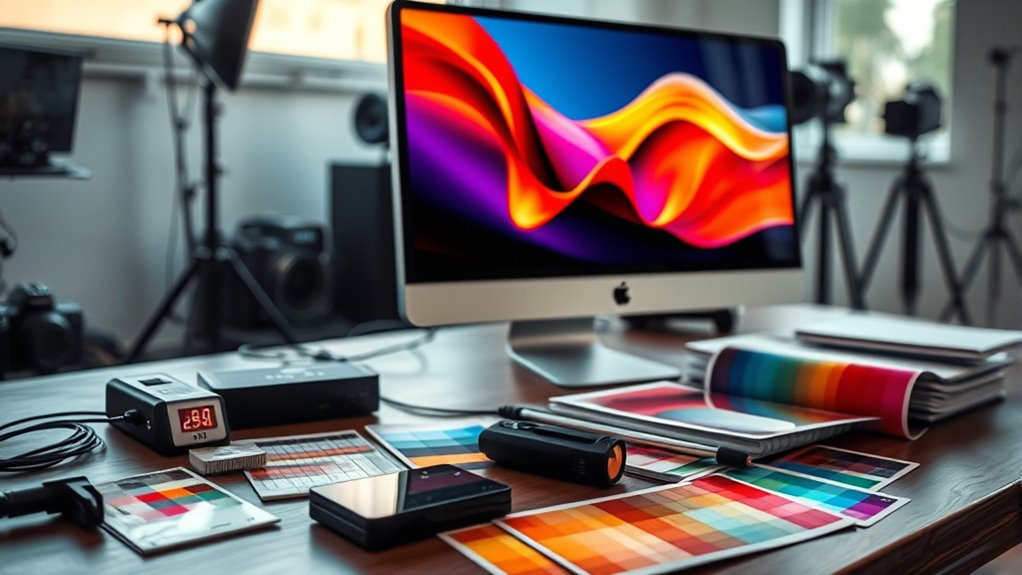
Different devices and monitors require specific profiles to guarantee accurate color reproduction. These ICC profiles help you achieve precise color calibration tailored to each device’s characteristics. These profiles are essential for maintaining color fidelity across various workflows and applications. Affiliate commissions can support the acquisition of calibration tools necessary for creating these profiles. For monitors, you might use standard RGB profiles or customized ones that reflect your display’s unique color behavior. color calibration tools can assist in creating these profiles for optimal results. Printers, on the other hand, need profiles that match specific paper and ink combinations, ensuring colors print as intended. Profile customization allows you to fine-tune these profiles for ideal results, especially when working with critical color workflows. By selecting the right ICC profile for your device, you ensure consistent, true-to-life colors across your workflow. Understanding the different types of ICC profiles helps you maintain color accuracy, whether you’re editing images or preparing files for print. Color management is essential to ensure that the colors you see on your screen match the printed output or other devices, reducing the need for multiple test prints or adjustments. In addition, device-specific profiles can help address variations caused by hardware differences, leading to more reliable color reproduction.
color management software for monitors
As an affiliate, we earn on qualifying purchases.
As an affiliate, we earn on qualifying purchases.
How to Install and Use ICC Profiles for Better Prints
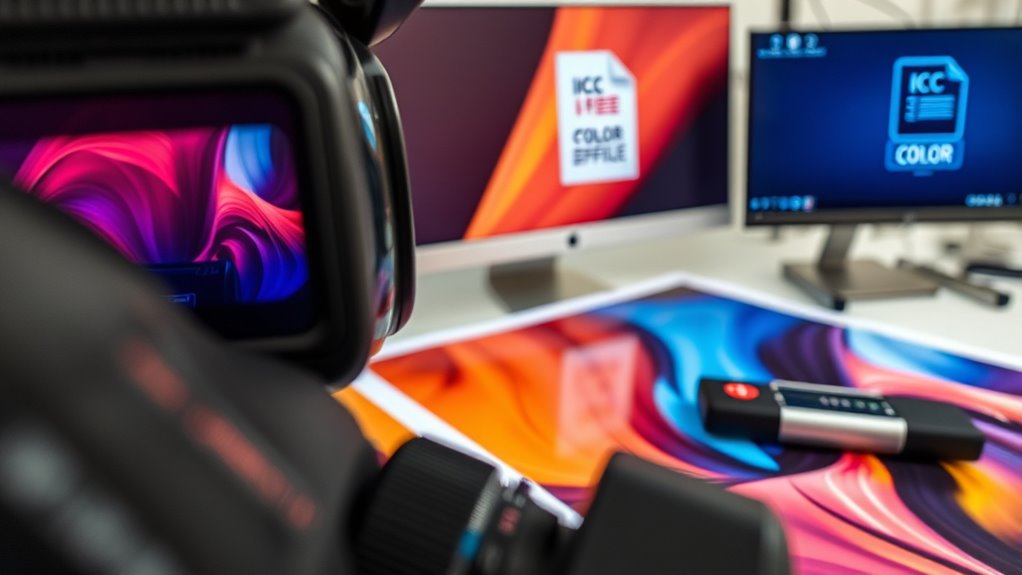
To achieve the best print results, you need to install the correct ICC profile for your printer, paper, and ink combination. Start by confirming profile compatibility with your device and printing workflow. Properly managing color calibration ensures your device displays and reproduces colors accurately, which is essential for professional-quality prints. Once you download the appropriate ICC profile, install it on your computer, often through your operating system’s color management settings or printer driver. Proper color calibration is essential; this ensures colors stay consistent across devices. When printing, select the installed ICC profile in your printing software or printer settings to match your paper type and ink. This step guarantees accurate color reproduction, minimizing shifts and inconsistencies. Regularly update and verify profiles to maintain ideal color accuracy, ensuring your prints look exactly as intended. Understanding the thermal behavior of your printing materials can help you better manage color consistency during production. Proper installation and use are key to achieving professional, vibrant results, especially when considering device calibration as part of your workflow.
Troubleshooting Common ICC Profile Problems
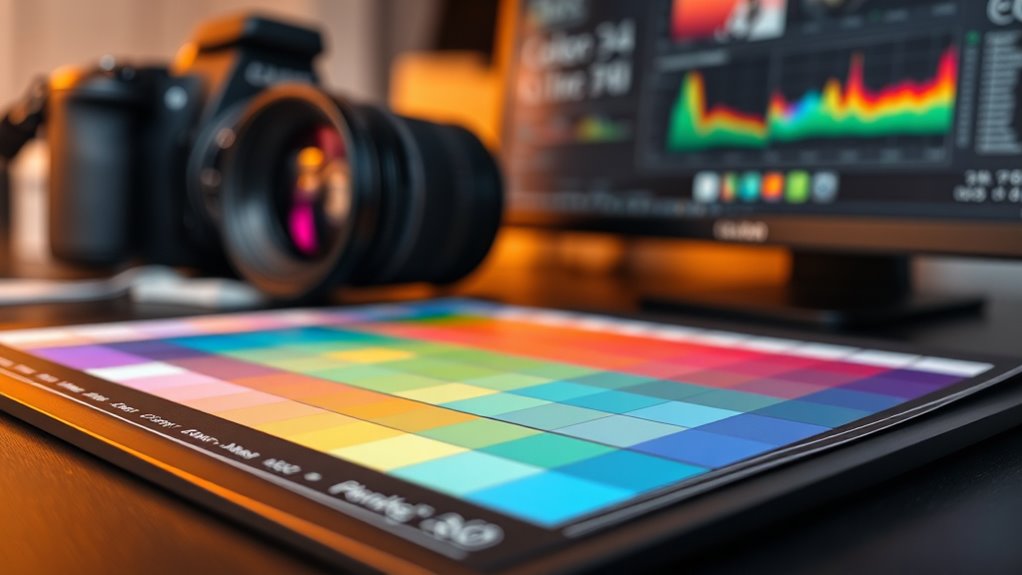
Are you experiencing color inconsistencies or unexpected shifts in your prints? These issues often stem from profile mismatches or improper color calibration. First, verify that the correct ICC profile is assigned to your device; using an incompatible profile can cause inaccurate colors. Additionally, free floating can sometimes lead to unpredictable effects on color management workflows. To prevent this, always ensure your profiles are properly embedded and updated within your software. Next, recalibrate your monitor and printer regularly to guarantee consistent color output. If colors still seem off, check for profile mismatches between your software, monitor, and printer. Sometimes, updating or reinstalling ICC profiles resolves these conflicts. Also, confirm that your software settings align with the correct profiles. Ensuring proper color management practices is essential for achieving accurate and consistent print results.
Frequently Asked Questions
Can ICC Profiles Be Customized for Specific Projects?
Yes, you can customize ICC profiles for specific projects through custom profile creation. This process involves project-specific calibration, where you adjust settings to match your printer, paper, and ink precisely.
How Often Should ICC Profiles Be Updated or Recalibrated?
You should update or recalibrate your ICC profiles whenever you notice a loss of color consistency or after significant changes to your equipment or workflow.
Regular profile recalibration helps maintain accurate color reproduction and guarantees your prints match your expectations. Typically, recalibrate every few months or when you switch to new hardware or media.
This routine keeps your color management sharp and your prints consistently high-quality.
Are ICC Profiles Compatible Across Different Operating Systems?
Yes, ICC profiles are generally compatible across different operating systems thanks to cross-platform compatibility and profile standardization.
You can usually use the same ICC profile on Windows, macOS, and Linux systems, ensuring consistent colors.
However, always verify that the profiles conform to the standard, as some proprietary or outdated profiles might cause issues.
Properly maintained, cross-platform compatibility guarantees your colors stay accurate regardless of your OS.
What Is the Difference Between Embedded and Attached ICC Profiles?
Embedded ICC profiles are incorporated directly into the image file, ensuring consistent color management across devices without extra steps.
Attached ICC profiles, however, are separate files linked to the image, requiring you to manually manage color accuracy.
Embedded profiles simplify the workflow by keeping color information with the file, while attached profiles give you flexibility to update or change profiles without modifying the image itself.
How Do ICC Profiles Affect Printing on Different Paper Types?
ICC profiles influence how your prints look on different paper types by adjusting for paper texture and ink absorption. When you select the right profile, it guarantees colors are accurate and consistent, regardless of whether you’re using glossy, matte, or textured paper.
This helps prevent color shifts and enhances detail, so your prints match your expectations. Proper profiles optimize ink behavior, making your images vibrant and true to your original design.
Conclusion
Understanding ICC profiles is key to achieving accurate, consistent prints. By selecting the right profiles and installing them correctly, you guarantee your colors match across devices. If you encounter issues, troubleshooting can usually resolve them quickly. With a little knowledge, you’ll manage your color workflow confidently, enjoying vibrant, true-to-life prints every time. Keep experimenting and refining your setup, and you’ll always produce professional-looking results that truly reflect your creative vision.
Fall Picks
fall essentials
As an affiliate, we earn on qualifying purchases.