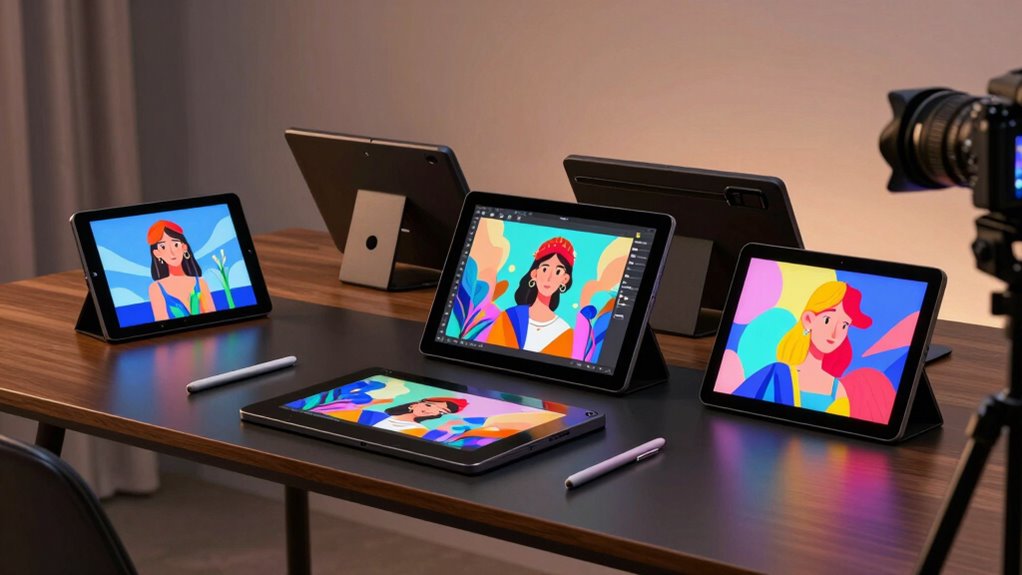

For artists who want to draw directly on a screen, I rank the XPPen Artist Pro 14 Gen 2 as the best overall pick for its larger drawing area and more advanced positioning than the compact entry-level models. The HUION Kamvas 13 (Gen 3) stands out for artists who value its dual dial controls, while the Xencelabs Pen Display 16 Lite is the premium choice for those drawn to a 16-inch 4K OLED display and two pens. The main tradeoffs are screen size, portability, display quality, and how much control hardware you want at hand. Smaller displays are easier to fit on a desk or carry, but offer less room for drawing and interface panels. Read on for my full comparison and guidance on which pen display tablet for artists best fits your setup.

Prime made for students and young adults
- Fast, free delivery for dorm and study essentials
- Prime Video and Amazon Music included
- Member-only deals
Key Takeaways
- The XPPen Artist Pro 14 Gen 2 is my best overall pick because it offers a larger drawing area than the 11.6- and 11.9-inch models without moving into the 16-inch class.
- The HUION Kamvas 13 (Gen 3) stands apart for its dual dial controls, which may suit artists who want physical controls close to the canvas; the listed version without a dual dial claim should not be treated as the same configuration.
- The Xencelabs Pen Display 16 Lite is the premium outlier, pairing a 16-inch 4K OLED display with two battery-free pens, but its feature set is more than many beginners need.
- Compact models dominate this lineup: several 11.6- and 11.9-inch displays suit tight desks and portable setups, though they leave less screen room for artwork and tool panels.
- There are meaningful alternatives within the same brand: XPPen‘s Artist 12 family spans multiple versions and colors, so checking the exact model name matters before comparing specifications or buying.
| UGEE UE16 15.4-Inch Drawing Tablet with Screen |  | Best for Color-Mode Flexibility | Screen size: 15.4 inches | Screen: Full-laminated | Color gamut: 143% sRGB | VIEW ON AMAZON | See Our Full Breakdown |
| XPPen Artist 12 3rd 11.9-Inch Drawing Tablet with Screen |  | Best for Beginners | Screen size: 11.9 inches | Screen: Full-laminated AG+AF nano-etched glass | Pressure levels: 16,384 | VIEW ON AMAZON | See Our Full Breakdown |
| Wacom One Pen Display 14 |  | Best for a Simple Mid-Size Setup | Model: W129280722 | Display size: 14 inches | VIEW ON AMAZON | See Our Full Breakdown | |
| HUION Kamvas 13 (Gen 3) Drawing Tablet with Screen, Dual Dial, 13.3-inch, Black |  | Best for Hands-On Workflow Control | Screen size: 13.3 inches | Screen: Laminated anti-sparkle glass | Pressure sensitivity: 16,384 levels | VIEW ON AMAZON | See Our Full Breakdown |
| XP-Pen Artist 12 3rd 11.9-Inch Drawing Tablet with Screen, Pink |  | Best Compact Pick | Display size: 11.9 inches | Stylus pressure levels: 16,384 | Stylus: Battery-free magnetic stylus | VIEW ON AMAZON | See Our Full Breakdown |
| XPPen Artist 12 Pro 11.6-Inch Drawing Tablet with Screen |  | Best Compact Controls | Display size: 11.6 inches | Display: IPS, fully laminated, anti-glare | Pen pressure: 8192 levels | VIEW ON AMAZON | See Our Full Breakdown |
| XPPen Artist Pro 14 Gen 2 14-Inch Drawing Display Tablet |  | Best Accessory Bundle | Display size: 14 inches | Aspect ratio: 16:10 | Pressure levels: 16,384 | VIEW ON AMAZON | See Our Full Breakdown |
| XP-Pen Artist 12 Pro Lite Drawing Tablet with Screen |  | Best for Beginners | Display size: 11.6 inches | Resolution: 1920 × 1080 | Display type: Fully laminated IPS | VIEW ON AMAZON | See Our Full Breakdown |
| Huion Kamvas Pro 16 Drawing Tablet with Screen |  | Best for a Larger Textured Canvas | Screen size: 15.6 inches | Screen: Full-laminated with anti-glare glass | Color gamut: 120% sRGB; 92% Adobe RGB | VIEW ON AMAZON | See Our Full Breakdown |
| XPPen Artist 13.3 Pro Drawing Tablet with Screen |  | Best Mid-Size Control Layout | Display: 13.3-inch fully laminated FHD | Color gamut: 88% NTSC; Adobe RGB ≥91%; sRGB ≥123% | Viewing angle: 178° | VIEW ON AMAZON | See Our Full Breakdown |
| Xencelabs Pen Display 16 Lite 16-Inch 4K OLED Drawing Display with Two Battery-Free Pens |  | Best for Color-Critical Portable Work | Screen size: 16 inches | Resolution: 4K | Display type: OLED | VIEW ON AMAZON | See Our Full Breakdown |
| XPPen Artist 16 (3rd Gen) Drawing Display |  | Best for Shortcut-Driven Workflows | Display size: 15.4 inches | Resolution: FHD | Stylus pressure levels: 16,384 | VIEW ON AMAZON | See Our Full Breakdown |
| XP-PEN Artist12 11.6-Inch FHD Pen Display |  | Best for Compact Desk Setups | Display size: 11.6 inches | Resolution: 1920 × 1080 | Display type: IPS | VIEW ON AMAZON | See Our Full Breakdown |
| HUION Kamvas 13 (Gen 3) Drawing Tablet with Screen |  | Best for Portable Pen Control | Display: 13-inch pen display | Screen surface: Full-laminated Canvas Glass 2.0 with anti-glare nano-etching | Pen: PenTech 4.0, 16,384 pressure levels, 2 g activation force, tilt auto-alignment, 3 side buttons | VIEW ON AMAZON | See Our Full Breakdown |
| VEIKK VK1200 V3 11.6-Inch Drawing Tablet with Screen |  | Best for Accessory-Rich Compact Drawing | Display size: 11.6 inches | Resolution: 1920 × 1080 | Display type: IPS, full-laminated, anti-glare | VIEW ON AMAZON | See Our Full Breakdown |
| pen display tablet for artist | Display size | Controls |
|---|---|---|
| UGEE UE16 15.4-Inch Drawing Ta | — | — |
| XPPen Artist 12 3rd 11.9-Inch | — | — |
| Wacom One Pen Display 14 | 14 inches | — |
| HUION Kamvas 13 | — | 5 programmable keys, dual dials, 3 pen side buttons |
| XP-Pen Artist 12 3rd 11.9-Inch | 11.9 inches | Dual roller wheels and 8 shortcut keys |
| XPPen Artist 12 Pro 11.6-Inch | 11.6 inches | 8 customizable shortcut keys and red dial |
| XPPen Artist Pro 14 Gen 2 14-I | 14 inches | — |
| XP-Pen Artist 12 Pro Lite Draw | 11.6 inches | 8 shortcut keys and programmable red dial |
| Huion Kamvas Pro 16 Drawing Ta | — | 6 customizable express keys and touch bar |
| XPPen Artist 13.3 Pro Drawing | — | Red dial and 8 customizable shortcut keys |
| Xencelabs Pen Display 16 Lite | — | — |
| XPPen Artist 16 | 15.4 inches | — |
| XP-PEN Artist12 11.6-Inch FHD | 11.6 inches | 6 customizable keys and programmable touch bar |
| HUION Kamvas 13 | — | 2 dial controllers and 5 press keys |
| VEIKK VK1200 V3 11.6-Inch Draw | 11.6 inches | — |
More Details on Our Top Picks
UGEE UE16 15.4-Inch Drawing Tablet with Screen
The 15.4-inch laminated screen gives this UGEE more room for broad strokes and layered work than the smaller XPPen Artist 12 3rd. Its four color modes, including sRGB, Adobe RGB, and DCI-P3, make it a flexible choice for artists who move between illustration and color-focused projects. The battery-free pen offers 16K pressure sensitivity, while the eight shortcut keys and scroll wheel put common adjustments within reach. The tradeoff is a larger setup that still needs a compatible computer or device; it is not a standalone drawing tablet. The included 3-in-1 cable is packed separately, too. I’d rank it above compact beginner displays for workspace and color options, but artists who prioritize a paper-like etched surface may prefer the XPPen Artist 12 3rd.
Pros:- 15.4-inch full-laminated screen offers more drawing room than the 11.9-inch XPPen Artist 12 3rd
- Four color modes include sRGB, Adobe RGB, DCI-P3, and black and white
- Battery-free stylus has 16K pressure sensitivity and a pressure-sensitive eraser
- Eight shortcut keys and a scroll wheel support hands-on workflow control
Cons:- Requires a compatible computer or device to run drawing apps
- The 3-in-1 cable is packed separately
- Product data does not specify an etched or anti-glare drawing surface
Best for: Digital illustrators who want a larger drawing area and multiple color modes for varied creative work
Not ideal for: Artists who need a standalone tablet, a compact travel setup, or a display with a specified paper-like etched surface
- Screen size:15.4 inches
- Screen:Full-laminated
- Color gamut:143% sRGB
- Color depth:8-bit
- Color modes:sRGB, Adobe RGB, DCI-P3, black and white
- Stylus:Battery-free; 16K pressure sensitivity; pressure-sensitive eraser; 2 shortcut keys
- Tablet controls:8 shortcut keys and scroll wheel
- Compatibility:Windows 7 or later, macOS 10.12 or later, Chrome OS 88 or later, Android 9.0 or later, Linux
- Included cable:3-in-1 cable
Our verdict“Choose the UE16 if you want a larger pen display with several color modes and room for customizable controls.”
XPPen Artist 12 3rd 11.9-Inch Drawing Tablet with Screen
The 11.9-inch nano-etched display is the main reason to pick this XPPen: its surface is designed to cut glare and add drawing texture, which can make a first pen-display setup feel more familiar. The one-cable USB-C connection, magnetic stylus storage, and included foldable stand keep the desk setup straightforward. Its 16,384 pressure levels and eight customizable keys cover the basics for learning a digital workflow. Compared with the larger UGEE UE16, the Artist 12 3rd takes up less room but gives less space for broad gestures and palettes. Its beginner-focused design may also feel limiting to artists who want more elaborate controls or a larger canvas. I see it as the approachable compact pick, rather than the choice for artists prioritizing workspace or advanced workflow customization.
Pros:- Full-laminated nano-etched glass is designed to reduce glare and provide a paper-like drawing feel
- USB-C one-cable connection can simplify setup with compatible devices
- Stylus supports 16,384 pressure levels and stores magnetically on the tablet
- Eight customizable shortcut keys and an included foldable stand
Cons:- 11.9-inch drawing area is smaller than the UGEE UE16’s 15.4-inch screen
- Compatibility is listed for Windows, Mac, and Android, fewer systems than the UE16 supports
- Beginner-oriented design may not suit artists seeking more advanced workflow controls
Best for: New digital artists with a compatible Windows, Mac, or Android device who want a compact display and included stand
Not ideal for: Artists who need a large drawing area, broad operating-system support, or more extensive physical controls
- Screen size:11.9 inches
- Screen:Full-laminated AG+AF nano-etched glass
- Pressure levels:16,384
- Stylus:X4 Smart Chip; magnetic storage; 0.3 mm nib travel
- Shortcut keys:8 customizable keys
- Connection:USB-C one-cable connection
- Compatibility:Windows, Mac, and Android
- Included accessory:S20 foldable stand
- Color:Silver
Our verdict“Pick the Artist 12 3rd if you want a compact, beginner-friendly pen display with an etched surface and a simple USB-C setup.”
Wacom One Pen Display 14
The 14-inch display places the Wacom One between compact models such as the XPPen Artist 12 3rd and the larger UGEE UE16, giving artists a middle-sized canvas without committing to the UE16’s footprint. That size may suit someone moving from a small pen display who wants more room for sketching and interface panels. The supplied product data identifies the model and screen size only, though, so it does not establish details such as surface treatment, pen pressure, shortcut controls, or compatibility. That limited information makes it harder to compare its drawing feel and workflow against the Huion Kamvas 13 (Gen 3), whose controls and display characteristics are specified. I’d keep this pick focused on buyers seeking the Wacom One 14-inch format, while artists choosing by technical features should compare confirmed specifications first.
Pros:- 14-inch display sits between the compact XPPen Artist 12 3rd and larger UGEE UE16
- Wacom One model designation makes the product identity clear
- Mid-size format may suit artists seeking more canvas than an 11.9-inch display
Cons:- Provided product data does not specify stylus pressure sensitivity or included pen details
- Screen surface, color performance, controls, and compatibility are not listed
- The limited specifications make direct feature comparisons with the Huion Kamvas 13 (Gen 3) difficult
Best for: Artists who specifically want a 14-inch Wacom One pen display and can confirm its requirements for their setup
Not ideal for: Buyers who need verified pen, display, shortcut-control, or compatibility specifications before choosing
- Model:W129280722
- Display size:14 inches
Our verdict“Consider the Wacom One Pen Display 14 if its 14-inch format fits your workspace and you can verify the features your workflow requires.”
HUION Kamvas 13 (Gen 3) Drawing Tablet with Screen, Dual Dial, 13.3-inch, Black
The dual dials give the Kamvas 13 (Gen 3) a distinct workflow advantage over the XPPen Artist 12 3rd’s eight-key layout: artists can assign frequently adjusted settings to rotary controls instead of relying only on keyboard shortcuts. Its 13.3-inch laminated anti-sparkle screen and low 2 g initial activation force are aimed at a controlled drawing feel, while factory color calibration supports artists who care about consistent color. It remains a pen display, not a standalone device, and its Android support depends on a device with USB 3.1 Gen 1 and DP 1.2. Compared with the 14-inch Wacom One, Huion provides much more documented detail about screen, pen, and controls. The tradeoff is a smaller canvas than the UGEE UE16 and more connection requirements to check.
Pros:- Dual dials complement five programmable keys for direct workflow adjustments
- 16,384 pressure levels and 2 g initial activation force
- Factory-calibrated color with average ΔE below 1.5
- Includes an adjustable ST300 stand
Cons:- Requires a connected computer or compatible device; it is not standalone
- Android use requires a device supporting USB 3.1 Gen 1 and DP 1.2
- 13.3-inch screen is smaller than the UGEE UE16’s 15.4-inch display
Best for: Illustrators who want rotary controls, a calibrated compact display, and a compatible computer-based setup
Not ideal for: Artists who need standalone drawing, a larger canvas, or Android support without checking device video-output requirements
- Screen size:13.3 inches
- Screen:Laminated anti-sparkle glass
- Pressure sensitivity:16,384 levels
- Initial activation force:2 g
- Display colors:16.7 million
- Color gamut and accuracy:99% sRGB; Rec.709; average ΔE < 1.5
- Controls:5 programmable keys, dual dials, 3 pen side buttons
- Connection:USB-C single-cable connection
- Included stand:Adjustable ST300 stand
Our verdict“Choose the Kamvas 13 (Gen 3) if you want a calibrated compact display with dials and a compatible tethered setup.”
XP-Pen Artist 12 3rd 11.9-Inch Drawing Tablet with Screen, Pink
This pink Artist 12 3rd is the compact control-focused option: its 11.9-inch laminated anti-glare display keeps the footprint modest, while dual roller wheels and eight shortcut keys offer more direct input than the XPPen Artist 12 3rd listing with a single set of customizable keys. The battery-free magnetic pen supports 16,384 pressure levels, and the package includes a foldable stand and drawing accessories. Broad compatibility across Windows, macOS, Android, ChromeOS, and Linux gives it more system flexibility than that other Artist 12 3rd listing, though one-cable USB-C use depends on device support. The small drawing area remains its clearest compromise; artists who want room for large gestures may prefer the Huion Kamvas 13 (Gen 3) or UGEE UE16. This pick suits compact desks and artists who value hands-on controls.
Pros:- Dual roller wheels and eight shortcut keys provide several direct control options
- Full-laminated AG nano-etched glass with anti-glare coating
- Battery-free magnetic stylus supports 16,384 pressure levels
- Compatibility spans Windows, macOS, Android, ChromeOS, and Linux
Cons:- 11.9-inch screen may feel cramped compared with the 13.3-inch Huion Kamvas 13 (Gen 3)
- USB-C one-cable operation depends on compatible devices
- Compact drawing area offers less room for broad strokes and open tool panels
Best for: Artists with limited desk space who want physical roller controls, broad OS compatibility, and included drawing accessories
Not ideal for: Artists who prefer a large canvas or need guaranteed one-cable operation on every compatible device
- Display size:11.9 inches
- Stylus pressure levels:16,384
- Stylus:Battery-free magnetic stylus
- Color gamut:99% sRGB
- Display:Full-laminated AG nano-etched glass with anti-glare coating
- Controls:Dual roller wheels and 8 shortcut keys
- Connectivity:USB-C one-cable support
- Compatibility:Windows 7 or later, macOS 10.13 or later, Android 10 or later, ChromeOS 88 or later, Linux, Windows ARM
- Included accessories:3-in-1 cable, USB-C cable, foldable stand, drawing glove, replacement nibs, nib extractor, cleaning cloth
Our verdict“Pick this Artist 12 3rd if you want a compact pink pen display with roller controls and wide operating-system compatibility.”
XPPen Artist 12 Pro 11.6-Inch Drawing Tablet with Screen
The Artist 12 Pro pairs a compact 11.6-inch canvas with unusually hands-on controls: eight shortcut keys and a red dial can keep common actions close while drawing. Its fully laminated, anti-glare IPS screen is designed to reduce the visible gap between nib and cursor, which helps strokes feel more direct. Compared with the XP-Pen Artist 13.3 Pro, this model takes up less desk space but gives artists less room for palettes and a larger composition. The battery-free pen offers 8192 pressure levels and 60° tilt, enough control for varied line weight without charging. The tradeoff is its small work area and required host connection; it is a screen-based input device, not a portable standalone tablet.
Pros:- Fully laminated anti-glare IPS screen is designed to reduce parallax
- Red dial and eight customizable keys put drawing controls within reach
- Battery-free stylus supports 8192 pressure levels and up to 60° tilt
- Supports Windows, macOS, ChromeOS, and Linux
Cons:- The 11.6-inch screen leaves less room for the canvas and interface than larger displays
- Requires connection to a host device and cannot run drawing software on its own
Best for: Artists with limited desk space who want a compact pen display with a dial and shortcut keys for desktop drawing
Not ideal for: Artists who keep palettes beside a large canvas or want to sketch away from a connected computer
- Display size:11.6 inches
- Display:IPS, fully laminated, anti-glare
- Pen pressure:8192 levels
- Tilt support:Up to 60°
- Stylus:Battery-free
- Controls:8 customizable shortcut keys and red dial
- Connection:Requires a host device; 3-in-1 cable
- Compatibility:Windows 7 or later, macOS 10.10 or later, ChromeOS 88 or later, Linux
Our verdict“Choose it for compact, control-rich desktop drawing; pick the Artist 13.3 Pro if you need more screen space.”
XPPen Artist Pro 14 Gen 2 14-Inch Drawing Display Tablet
The Artist Pro 14 Gen 2 is the most complete ready-to-draw setup in this group, with a foldable stand, wireless shortcut remote, wrist rest, and 3-in-1 cable in the box. Its 14-inch, 16:10 laminated anti-glare display offers more vertical workspace than the 11.6-inch Artist 12 Pro, while the 99% sRGB coverage and stated △E <2.2 color accuracy suit artists who want a more color-conscious screen. The X3 Pro pen’s 16,384 pressure levels provide finer input detection than the Artist 12 Pro’s 8192 levels, though that difference matters less than screen space and comfort for many workflows. It still depends on a connected computer or compatible device, and its bigger bundled setup is less compact than the smaller XP-Pen displays.
Pros:- 14-inch 16:10 display gives more working room than the 11.6-inch Artist 12 Pro
- Laminated anti-glare screen lists 99% sRGB coverage and △E <2.2 accuracy
- Battery-free X3 Pro stylus supports 16,384 pressure levels
- Includes foldable stand, wireless shortcut remote, wrist rest, and 3-in-1 cable
Cons:- Requires a computer or compatible connected device
- The included stand, remote, and wrist rest make for a less minimal setup than a compact pen display
Best for: Digital illustrators setting up a desk workstation who want a 14-inch canvas, included comfort accessories, and broad device compatibility
Not ideal for: Artists seeking a standalone tablet or a compact display that travels easily with minimal accessories
- Display size:14 inches
- Aspect ratio:16:10
- Pressure levels:16,384
- Color coverage:99% sRGB
- Color accuracy:△E <2.2
- Stylus:X3 Pro battery-free stylus
- Included accessories:Foldable stand, wireless shortcut remote, X-Edge wrist rest, 3-in-1 cable
- Compatibility:Windows 7 or later, macOS 10.10 or later, Android (USB 3.1 DP 1.2), Chrome OS 88 or later, Linux
Our verdict“Pick the Artist Pro 14 Gen 2 for a well-equipped desk setup with a larger, color-conscious canvas, provided you have a host device.”
XP-Pen Artist 12 Pro Lite Drawing Tablet with Screen
The Artist 12 Pro Lite is a straightforward entry point for artists learning to work directly on a screen: the 11.6-inch, 1920 × 1080 laminated IPS display keeps the cursor close to the pen tip, and the battery-free stylus adds pressure and tilt response without charging. Eight shortcut keys and a programmable red dial offer room to build a more efficient routine as skills grow. Compared with the XPPen Artist Pro 14 Gen 2, it has a smaller canvas and fewer listed pressure levels, but its compact layout may be easier to fit beside a laptop. That small screen is the central compromise, especially once menus and tool palettes take up space. It also connects by cable to a computer rather than operating as a standalone drawing device.
Pros:- 1920 × 1080 fully laminated IPS display is designed to reduce parallax
- Battery-free pen supports 8192 pressure levels and up to 60° tilt
- Eight shortcut keys and programmable red dial can be tailored to a drawing workflow
- Works with Windows, macOS, ChromeOS, and Linux
Cons:- The 11.6-inch display can feel cramped when the art program has multiple panels open
- Requires a computer connection and is not a standalone tablet
Best for: New digital artists who want a compact screen-based drawing setup with customizable controls and a Full HD display
Not ideal for: Artists working on large compositions or detailed projects that need substantial space for canvas and palettes
- Display size:11.6 inches
- Resolution:1920 × 1080
- Display type:Fully laminated IPS
- Viewing angle:178°
- Pressure sensitivity:8192 levels
- Tilt support:Up to 60°
- Controls:8 shortcut keys and programmable red dial
- Connection and compatibility:3-in-1 cable; Windows 7 or later, macOS 10.10 or later, ChromeOS 88 or later, Linux
Our verdict“Choose the Artist 12 Pro Lite to learn screen-based drawing in a compact setup; move up to the Artist Pro 14 Gen 2 for more canvas room.”
Huion Kamvas Pro 16 Drawing Tablet with Screen
The Kamvas Pro 16 makes its case with a 15.6-inch drawing surface, giving artists more space for a composition and surrounding tools than the 14-inch Artist Pro 14 Gen 2. Its full-laminated anti-glare screen has a slight drawing texture, while the listed 120% sRGB gamut and 92% Adobe RGB coverage may suit illustrators who value broad color reproduction. Six express keys and a touch bar provide a different control layout from the XPPen models’ red dials; that may appeal to artists who prefer direct shortcuts and a slider. The larger canvas comes with a computer-dependent workflow, and the listed 8-bit color depth and 16.7 million colors are worth weighing for color-critical work. Its compatibility list is also narrower than several XPPen options.
Pros:- 15.6-inch laminated anti-glare screen provides more working area than the 14-inch Artist Pro 14 Gen 2
- Slight screen texture and adjustable 20° to 60° stand support a more comfortable drawing position
- Six customizable express keys and touch bar offer direct workflow controls
- Battery-free pen supports 60° tilt and has two programmable side buttons
Cons:- Requires connection to a computer or laptop
- Listed compatibility covers Windows, macOS, and Ubuntu Linux, with no ChromeOS or Android support specified
- 8-bit color depth and 16.7 million colors may be limiting for some color-critical workflows
Best for: Desktop illustrators who want a roomy 15.6-inch textured display, adjustable stand, and touch-bar controls
Not ideal for: Artists who need a standalone device, broad Android compatibility, or a display specified for more demanding color-critical work
- Screen size:15.6 inches
- Screen:Full-laminated with anti-glare glass
- Color gamut:120% sRGB; 92% Adobe RGB
- Color depth:8-bit; 16.7 million colors
- Contrast ratio:1000:1
- Controls:6 customizable express keys and touch bar
- Pen:Battery-free with 60° tilt recognition and 2 programmable side buttons
- Stand and connection:Adjustable from 20° to 60°; 3-in-1 USB-C cable with HDMI signal
Our verdict“Choose the Kamvas Pro 16 for a larger, textured desktop canvas with touch-bar controls, and weigh its color specifications against your workflow.”
XPPen Artist 13.3 Pro Drawing Tablet with Screen
The Artist 13.3 Pro sits between the compact 11.6-inch displays and larger desk models, making it a practical fit for artists who want more canvas without moving to a 15.6-inch screen. Its fully laminated FHD display is paired with a battery-free stylus that supports 16,384 pressure levels and 60° tilt; compared with the Artist 12 Pro, that means a larger work area and a higher listed pressure count. A red dial and eight customizable keys provide tactile access to common actions, while the included stand and replacement nibs help complete a desktop setup. The stated 88% NTSC gamut may give color-critical artists pause, and, like the other pen displays here, it needs a connected computer rather than running apps independently.
Pros:- 13.3-inch fully laminated FHD screen offers more canvas than the 11.6-inch Artist 12 Pro
- Battery-free stylus supports 16,384 pressure levels and 60° tilt
- Red dial and eight customizable shortcut keys support direct workflow control
- Includes stand, replacement nibs, pen holder, drawing glove, and cables
Cons:- The listed 88% NTSC gamut may be limiting for some color-critical workflows
- Requires a connection to a computer or laptop
Best for: Artists who want a mid-size screen with a dial, shortcut keys, tilt support, and a bundled stand for computer-based drawing
Not ideal for: Color-critical artists who need stronger stated gamut coverage, or anyone wanting a standalone tablet
- Display:13.3-inch fully laminated FHD
- Color gamut:88% NTSC; Adobe RGB ≥91%; sRGB ≥123%
- Viewing angle:178°
- Stylus pressure:16,384 levels
- Tilt support:60°
- Stylus speed:220 RPS
- Controls:Red dial and 8 customizable shortcut keys
- Compatibility:Windows 7 or later, macOS X 10.10 or later, ChromeOS 88 or later, Linux
Our verdict“Pick the Artist 13.3 Pro for a mid-size canvas and tactile controls, unless color gamut or standalone operation is your priority.”
Xencelabs Pen Display 16 Lite 16-Inch 4K OLED Drawing Display with Two Battery-Free Pens
The 16-inch 4K OLED panel gives this Xencelabs an advantage for artists who need fine image detail and broad color depth while working away from a fixed desk. Its 10-bit color and etched anti-glare surface suit detailed painting and color review better than the FHD panels on the XPPen Artist 16 (3rd Gen) and the smaller XP-PEN Artist12. At 2.67 pounds, with a fanless metal back and USB-C connection, it is easier to carry than a larger studio display. The tradeoff is that this is a display for a connected computer, and the screen has no built-in shortcut buttons; artists who rely on quick hardware controls may prefer the Artist 16’s keys and scroll wheels. I’d choose it for image quality and quiet portability, not for an all-in-one drawing setup.
Pros:- 16-inch 4K OLED screen with 10-bit color
- Etched anti-glare surface helps limit reflections
- Lightweight, fanless design is suited to portable work
- Includes two battery-free pens and supports portrait or landscape use
Cons:- Requires a compatible computer and USB-C connection
- No built-in shortcut buttons on the display
Best for: Digital painters and illustrators who travel with a compatible computer and want a portable 4K OLED canvas with 10-bit color.
Not ideal for: Artists who want standalone drawing, built-in shortcut controls, or a lower-resolution display with more on-device controls.
- Screen size:16 inches
- Resolution:4K
- Display type:OLED
- Color depth:10-bit, 1.07 billion colors
- Pen pressure range:3 g to 500 g
- Weight:2.67 lbs (1.21 kg)
- Connectivity:USB-C
- Included pens:2 battery-free pens
- Compatible operating systems:Windows, macOS, Linux
Our verdict“Choose the Xencelabs if portable 4K OLED detail matters more to your art workflow than built-in shortcut controls.”
XPPen Artist 16 (3rd Gen) Drawing Display
The Artist 16 (3rd Gen) is a practical pick for artists who want a roomy drawing area and frequent access to commands without reaching for a keyboard. Its eight shortcut keys and two scroll wheels give it a clear workflow advantage over the Xencelabs Pen Display 16 Lite, which has no built-in display controls. The laminated, etched screen reduces the visible gap between pen tip and cursor while cutting reflections, and its stated color coverage is broad enough for artists who move between digital painting and color-sensitive work. The main compromise is FHD resolution: compared with the Xencelabs 4K OLED, fine interface details and artwork appear less crisp. It also offers USB-C-to-USB-C connectivity, but some setups may need the included 3-in-1 cable. I’d pick it for hands-on controls and a flexible stand over maximum pixel density.
Pros:- Eight customizable shortcut keys and two scroll wheels
- Fully laminated etched glass reduces glare and cursor parallax
- Low 2 g activation force and 16,384 pressure levels
- Includes a foldable stand and supports several operating systems
Cons:- FHD resolution is less detailed than the Xencelabs 4K display
- Some computer setups may require the included 3-in-1 cable
Best for: Illustrators who use shortcuts and scrolling controls constantly and want a 15.4-inch display for a desk or shared workspace.
Not ideal for: Artists prioritizing 4K detail or buyers whose computer setup lacks compatible USB-C and HDMI connections.
- Display size:15.4 inches
- Resolution:FHD
- Stylus pressure levels:16,384
- Initial activation force:2 g
- Color gamut:99% sRGB, 98% Adobe RGB, 97% Display P3
- Shortcut controls:8 customizable keys and 2 scroll wheels
- Included stand:S20 foldable stand
- Connectivity:USB-C to USB-C or included 3-in-1 cable
- Compatible operating systems:Windows, macOS, Android, ChromeOS, Linux
Our verdict“Choose the Artist 16 if physical shortcuts and a larger FHD workspace matter more than 4K sharpness.”
XP-PEN Artist12 11.6-Inch FHD Pen Display
The 11.6-inch Artist12 keeps the drawing display small enough for a crowded desk or a portable teaching setup, while its 1920 × 1080 IPS screen gives artists a defined canvas for sketching and editing. Unlike the pricier-feeling, larger work area of the XPPen Artist 16 (3rd Gen), this model gives up screen space but keeps useful controls close: six shortcut keys and a programmable touch bar can reduce trips to the keyboard. The battery-free stylus has an eraser, which makes quick corrections straightforward. Its 72% NTSC color gamut is narrower than the Artist 16’s stated coverage, and the small canvas can feel cramped when palettes and tool panels are open. It also needs a computer connection and may need converters for newer port setups. I’d favor it for compact, control-focused workflows rather than large, color-critical projects.
Pros:- Compact 11.6-inch Full HD IPS display
- Six customizable keys and a programmable touch bar
- Battery-free stylus includes an eraser
- Supports Windows, Mac, and Linux
Cons:- Small screen can feel cramped with drawing tools and palettes open
- Requires a computer and may need port converters
- 72% NTSC color gamut is narrower than the Artist 16’s stated coverage
Best for: Students, instructors, and illustrators with limited desk space who want a compact display with on-device shortcuts.
Not ideal for: Artists who need a large canvas for detailed work or wider color coverage for color-critical output.
- Display size:11.6 inches
- Resolution:1920 × 1080
- Display type:IPS
- Color gamut:72% NTSC (100% sRGB)
- Pressure sensitivity:8192 levels
- Stylus:Battery-free with eraser
- Controls:6 customizable keys and programmable touch bar
- Connection requirements:HDMI and USB-A ports, or compatible converters
- Warranty:1 year
Our verdict“Choose the Artist12 for a compact, shortcut-equipped drawing station, provided its small canvas fits your projects.”
HUION Kamvas 13 (Gen 3) Drawing Tablet with Screen
The Kamvas 13 (Gen 3) pairs a manageable 13-inch canvas with controls that suit artists who adjust tools as they draw. Its two dials and five press keys offer more direct input than the compact XP-PEN Artist12’s touch bar and six keys, while the PenTech 4.0 stylus adds 16,384 pressure levels, low activation force, tilt alignment, and three side buttons. The fully laminated, nano-etched glass also aims to keep the cursor close to the pen tip while softening glare. Factory calibration and stated coverage of 99% sRGB/Rec.709 and 90% Adobe RGB make it a stronger color-focused option than the Artist12. It remains a connected display, not a standalone tablet, and Android use depends on specific video-port support. I’d choose it for portable control and pen response, with the Xencelabs offering a larger, sharper screen.
Pros:- 16,384-level pen input with 2 g activation force and tilt alignment
- Full lamination and anti-glare nano-etched glass
- Factory calibrated to ΔE<1.5 with broad stated color coverage
- Two dial controllers and five customizable press keys
Cons:- Requires connection to a computer, laptop, or compatible device
- Android compatibility depends on specific USB and DisplayPort support
- Smaller work area than the 16-inch Xencelabs display
Best for: Illustrators who want a portable 13-inch display with physical dials, responsive pen input, and calibrated color.
Not ideal for: Artists seeking standalone drawing or Android users whose device lacks USB 3.1 Gen 1 and DisplayPort 1.2 support.
- Display:13-inch pen display
- Screen surface:Full-laminated Canvas Glass 2.0 with anti-glare nano-etching
- Pen:PenTech 4.0, 16,384 pressure levels, 2 g activation force, tilt auto-alignment, 3 side buttons
- Color coverage:99% sRGB/Rec.709; 90% Adobe RGB
- Color accuracy:Factory calibrated to ΔE<1.5
- Controls:2 dial controllers and 5 press keys
- Connectivity:Dual-interface design; supports full-featured USB-C to USB-C
- Weight:865 g
- Compatibility:Windows 10+, macOS 10.12+, compatible Android devices, Ubuntu 20.04 LTS
Our verdict“Choose the Kamvas 13 (Gen 3) if you want portable pen control and calibrated color in a computer-connected display.”
VEIKK VK1200 V3 11.6-Inch Drawing Tablet with Screen
The VK1200 V3 is a compact FHD pen display for artists who want a small screen with a generous set of included tools. Its two battery-free, tilt-sensitive pens, stand, and 28 extra nibs make it ready for varied drawing setups, while six customizable shortcut keys keep common commands at hand. Compared with the XP-PEN Artist12, it offers twice the stated pressure levels and includes two pens, though both share an 11.6-inch, 1920 × 1080 format and require a connected computer. The full-laminated anti-glare screen helps keep pen placement clear, but its 72% NTSC gamut and compact canvas are less suited to color-critical or panel-heavy work than the HUION Kamvas 13 (Gen 3). I’d choose this VEIKK for a small workspace where included accessories matter more than a larger, broader-gamut display.
Pros:- Two battery-free pens with tilt support
- Full-laminated anti-glare IPS screen
- Six customizable shortcut keys
- Includes a stand and 28 extra nibs
Cons:- Requires connection to a computer
- 11.6-inch screen may feel small for detailed or panel-heavy workflows
- 72% NTSC gamut is narrower than the HUION Kamvas 13 (Gen 3)’s stated coverage
Best for: Beginning and hobbyist artists who want a compact, computer-connected display with a stand, spare nibs, and a backup pen.
Not ideal for: Artists who need a larger canvas, wide color coverage, or a standalone drawing device.
- Display size:11.6 inches
- Resolution:1920 × 1080
- Display type:IPS, full-laminated, anti-glare
- Color gamut:72% NTSC
- Pressure sensitivity:16,384 levels
- Pen tilt:Up to 60 degrees
- Pens:2 battery-free pens
- Shortcut keys:6 customizable keys
- Connectivity:Full-featured USB-C; HDMI and USB-A to USB-C cables included
Our verdict“Choose the VK1200 V3 if you want an accessory-rich compact display and can work comfortably on an 11.6-inch canvas.”

How We Picked
I compared these displays around the decisions artists face when drawing directly on screen: usable workspace, stated display characteristics, pen and control features, portability, and how easily each model appears to fit a beginner, working artist, or specialist setup. I gave weight to features that can change daily use, such as a larger panel, higher resolution, physical dials, or included pen choices, rather than treating brand or model count as proof of quality. I also considered the limits implied by the listed size and product configuration: a compact display can be easier to place, but it gives less room for canvas and interface; a feature-rich display may be a poor fit if those features go unused.
The ranking favors balance for artists first, then specific strengths. The XPPen Artist Pro 14 Gen 2 leads as a middle-ground option between the smallest displays and 16-inch models. The Kamvas 13 (Gen 3) earns a role for its stated dual dials, and the Xencelabs Pen Display 16 Lite ranks as a premium pick for its 4K OLED screen and two pens. The rest serve more focused needs, including entry-level sizing, alternate screen dimensions, and model-specific options. Several listings have similar names, so I treat each named configuration as distinct and recommend verifying the exact version before purchase.
Factors to Consider When Choosing Pen Display Tablet For Artists
Choosing a pen display starts with how you work at your desk, not with the longest feature list. I would match the screen to your drawing habits, computer setup, and need for portability, then check which exact model and accessories are included.
Choose a screen size that fits your drawing habits
A small display can make sense if you draw in short sessions, work in a compact space, or already rely on a separate monitor for reference and tool panels. Artists who keep many palettes open may find an 11.6- or 11.9-inch canvas cramped, even when the device itself is convenient to place. A 13- or 14-inch model gives more room without taking up as much desk space as a 16-inch display. Larger screens can reduce the need to zoom and pan, but they also call for a suitable desk position and enough room for your keyboard. Avoid choosing by diagonal measurement alone: compare the display’s footprint with the space where you will actually draw.
Treat resolution and panel type as separate decisions
Resolution affects how much detail can fit on screen, while panel type shapes the display experience in other ways. A 4K label can be attractive for detailed artwork, but it does not by itself tell you about color accuracy, brightness, glare, or how the display looks from different angles. Those details matter more if you prepare work for print or need the display to match other screens. Check the manufacturer’s full display specifications for the exact model rather than assuming that similarly named versions share a panel. If your art is mostly for web use, you may get more practical benefit from a comfortable drawing area than from a resolution upgrade.
Check pen support and physical controls against your workflow
Pen feel depends on more than the pen’s headline feature list; the tablet, software, driver, and your preferred grip all shape the experience. Physical dials or shortcut controls can speed up repeated actions such as zooming and changing brush size, but they add little if you already use keyboard shortcuts or a separate controller. Two included pens may help artists who want different pen setups or a spare ready to use, though they are not automatically a reason to pay more. Look up compatibility details for your drawing software and operating system before choosing based on a control feature. When comparing listings, check whether the exact configuration includes the controls and pen accessories described.
Plan for the computer connection and desk setup
A pen display is a screen and drawing surface that depends on a connected computer, so check the connection requirements before you buy. Confirm that your computer has the needed ports and supports the display connection, and find out whether the setup calls for adapters or separate power. A tidy one-cable setup can be convenient, but it should not be assumed from a product photo or a similarly named model. Think through where the display will sit relative to your main monitor, keyboard, and drawing arm. If you intend to move it between locations, check its dimensions and included cables alongside its screen size.
Decide which upgrades justify a premium model
Paying more makes sense when a feature solves a recurring problem in your work, such as wanting a larger canvas, a more detailed display, or physical controls within reach. It is harder to justify an upgrade based on specifications you will rarely notice during your normal sessions. Beginners often gain more from a comfortable size and a setup that works with their computer than from a high-end panel or several extra controls. Artists preparing detailed work for demanding output may value display upgrades more than someone sketching for personal projects. Write down the one limitation you want your next display to fix, then compare models on that point before weighing secondary features.
Verify the exact model, generation, and included accessories
This lineup includes repeated product families, two listed Kamvas 13 (Gen 3) entries, and several close variations of the XPPen Artist 12. A color variant or a name that adds “Pro,” “Lite,” or a generation number can refer to a different configuration, so do not transfer specifications from one listing to another. Check the manufacturer’s product page for the exact model identifier, display details, controls, cable requirements, and included accessories. Confirm the seller’s listing matches that identifier before ordering. This small check can prevent a mismatch between the feature you expect and the device you receive.
Frequently Asked Questions
Is a 12-inch pen display large enough for full-time illustration?
It can work for full-time illustration if you are comfortable zooming and panning and keep much of your interface on another screen. The compact Artist 12 and similar models in this roundup are easier to fit into limited spaces, but the drawing area leaves less room for a large canvas and tool panels at once. Artists who use many palettes or make detailed line work may prefer the extra room of a 13- or 14-inch screen. If possible, compare the physical dimensions with a paper mock-up on your desk before choosing. Your software layout matters as much as the display diagonal.
Should I choose a 4K OLED display over a larger, lower-resolution screen?
Choose based on the work you do and the viewing distance you use, rather than assuming 4K is always the better choice. The Xencelabs Pen Display 16 Lite is the lineup’s stated 4K OLED option, while other models may offer a more useful fit through size, controls, or a simpler setup. Fine detail and display presentation can matter for artists who inspect their work closely, but color accuracy and calibration support also deserve attention. A larger screen can give more space for canvas and tools even if its resolution is lower. Check complete display specifications for the exact model and compare them with your main monitor.
Can I use a pen display without a separate computer?
The products in this roundup are drawing displays intended to connect to a computer; they are not presented as standalone drawing tablets. Before buying, check the exact model’s computer, operating system, port, and power requirements. Make sure your computer can drive the display and that you have a workable cable route for your desk. If you need to draw away from a computer, compare standalone tablets instead of assuming a screen-equipped pen display will work on its own. Confirm software compatibility too, especially if you depend on a particular illustration app.
Are the XPPen Artist 12 models interchangeable?
No: the lineup includes Artist 12, Artist 12 Pro, Artist 12 Pro Lite, and Artist 12 3rd models, as well as a color variant. Similar names do not establish that their screens, controls, connections, or included accessories match. Compare the precise model number and generation on the manufacturer page with the listing you plan to buy. Do the same for the two Kamvas 13 (Gen 3) entries, since one listing specifically calls out a dual dial and the other does not. Treat each configuration as its own product until its specifications confirm otherwise.
What should a beginner prioritize over advanced display features?
A beginner should start with a comfortable screen size, reliable compatibility with their computer and drawing software, and a desk setup that allows a relaxed drawing posture. Advanced controls can shorten repeated actions, but they cannot make up for a display that feels cramped or awkward to position. A compact model can be a sensible first choice when desk space or portability matters; a somewhat larger screen may be easier for long sessions. Check included cables and accessories so setup does not depend on an unexpected adapter. Pay for higher-end display features when your work or preferences give you a clear reason to use them.
Conclusion
For most artists in this comparison, I would start with the XPPen Artist Pro 14 Gen 2: its 14-inch class places it between the compact choices and the larger premium displays. My best value pick is the UGEE UE16 15.4-Inch for artists who want a larger listed screen without choosing the premium 4K OLED route, though I would verify its full display and connection specifications first. Beginners working with limited space can look at the XPPen Artist 12 3rd, while artists who want physical controls should compare the HUION Kamvas 13 (Gen 3) with dual dial configuration. For a premium display and two included pens, the Xencelabs Pen Display 16 Lite is the specialist choice. Before deciding, match the exact model version to your computer, desk, and drawing habits.
Fall Picks
fall essentials
As an affiliate, we earn on qualifying purchases.