
DPI and PPI are often mixed up, but they serve different purposes in image quality. PPI refers to digital pixel density, affecting how sharp images appear on screens, while DPI relates to printer dots, influencing print detail and clarity. Misunderstanding these can lead to blurry prints or oversized files. Knowing when to modify each setting ensures the best output. If you want to uncover what really separates them and avoid common myths, keep exploring.
Key Takeaways
- DPI and PPI are often confused, but DPI relates to print ink density, while PPI measures digital image pixel density.
- The myth persists because people think higher numbers always mean better quality, which is incorrect.
- Proper understanding ensures optimal print and digital output by using DPI for printing and PPI for screens.
- Misunderstanding these metrics can lead to blurry prints or unnecessarily large digital files.
- Clarifying their distinct roles prevents mismatched expectations between print quality and digital clarity.

Liene M100 4×6'' Photo Printer, Phone Printer 100 Sheets & 3 Cartridges, Full-Color Photo, Portable Instant Photo Printer for iPhone Android, Thermal Dye Sublimation, Wi-Fi Picture Printer 100 Papers
User-Friendly Portable Photo Printer for iPhone, Android & PC – Get beautiful and colourful memories with Liene 4×6…
As an affiliate, we earn on qualifying purchases.
As an affiliate, we earn on qualifying purchases.
What Are DPI and PPI—and Why Do They Matter?
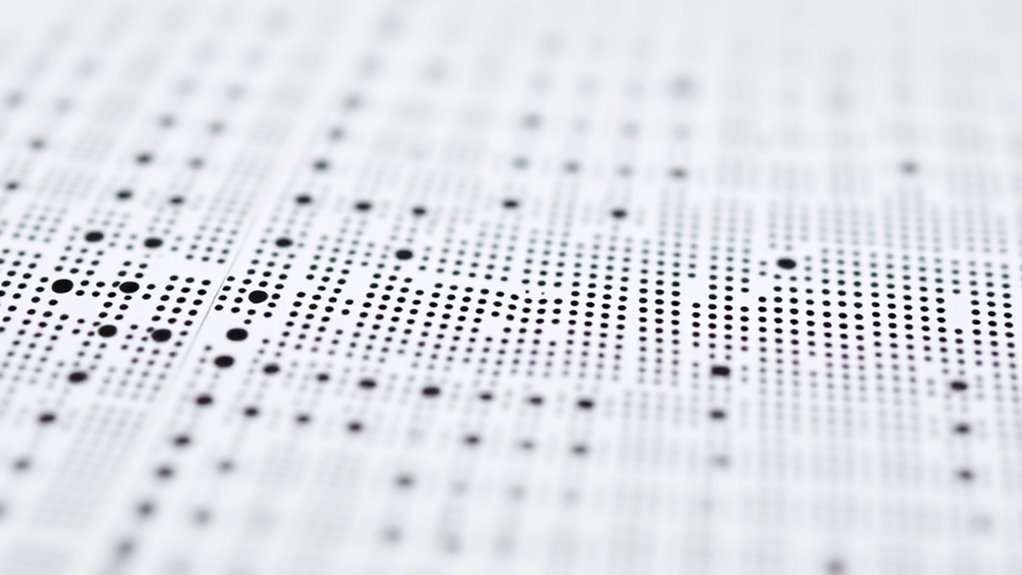
DPI (dots per inch) and PPI (pixels per inch) are measurements that determine the resolution and clarity of images on screens and in print. When you perform screen calibration, understanding PPI helps you see how sharp images will appear digitally. Higher PPI means more pixels packed into each inch, resulting in crisper visuals. DPI, on the other hand, is essential for print quality; it measures how many dots a printer places per inch. Both metrics matter because they influence file compression; higher resolution images require more data, which can slow down your workflow. Knowing the difference helps you prepare images correctly for digital display or printing, ensuring you avoid unnecessary file size increases or blurry outputs. Understanding image resolution is key to selecting the right settings for your specific project needs. Mastering DPI and PPI saves time and enhances your overall image quality. Additionally, recognizing how these measurements impact file size and quality can help optimize your workflow for both digital and print media. Properly adjusting these parameters can also prevent issues with appliance compatibility during large-format printing projects.

ASUS ProArt Display 27” 4K HDR Professional Monitor (PA279CRV) – IPS, UHD (3840 x 2160), 99% DCI-P3/Adobe RGB, ΔE < 2, Calman Verified, USB-C PD 96W, DisplayPort, Daisy-Chain, Ergonomic, 3yr Warranty
27-inch 4K (3840 x 2160) LED backlight HDR display with 178° wide-view IPS panel
As an affiliate, we earn on qualifying purchases.
As an affiliate, we earn on qualifying purchases.
How Do DPI and PPI Differ in Printing and Digital Images?

While DPI and PPI are related metrics, they serve different purposes in printing and digital images. DPI measures how many dots a printer places per inch, affecting color calibration and print detail. PPI, however, refers to the pixel density of an image on your screen, influencing clarity and sharpness. Understanding these differences helps you produce accurate color calibration and select the right paper texture for *superior* print results. Additionally, resolution standards play a crucial role in ensuring your images meet quality expectations across both mediums. Knowing the difference between these metrics can prevent common printing errors related to image resolution, and paying attention to print calibration can further enhance the final output to match your expectations.

Epson Workforce Pro WF-7820 Wireless All-in-One Wide-Format Printer, Auto 2-Sided Print 13" x 19" Copy, Scan & Fax, 50-Page ADF, 250-sheet Paper Capacity, Works with Alexa – Black
The Epson WorkForce Pro WF-7820 Wireless All-In-One Printer is a versatile machine that meets your office's needs. You…
As an affiliate, we earn on qualifying purchases.
As an affiliate, we earn on qualifying purchases.
How Resolution Settings Impact Your Print Quality

Your printer’s resolution settings directly influence the sharpness and detail of your final print. High-resolution settings utilize advanced print technology to produce clearer images, especially on larger formats. However, increasing resolution also involves more image compression, which can sometimes reduce color accuracy and introduce artifacts. Additionally, understanding the future of modern printing technology can help you make better choices about resolution settings. As print technology continues to evolve, staying informed about new developments in print resolution can help you optimize your results and avoid outdated assumptions. Incorporating knowledge about digital image processing can further enhance your understanding of how resolution impacts print quality. Moreover, adaptive printing techniques are emerging to adjust resolution dynamically based on the content, leading to more efficient and higher-quality outputs. Recognizing how print resolution interacts with various media types can also guide you in selecting the most suitable settings for your projects. Conversely, lower settings may save ink and printing time but result in blurry or pixelated images. It’s crucial to find a balance that matches your print purpose; photos need higher resolutions for detail, while simple text can tolerate lower settings. Understanding how resolution impacts your print quality helps you optimize results without unnecessary ink or processing. Remember, choosing the right resolution isn’t just about numbers—it’s about how print technology and image compression work together to deliver your desired quality.
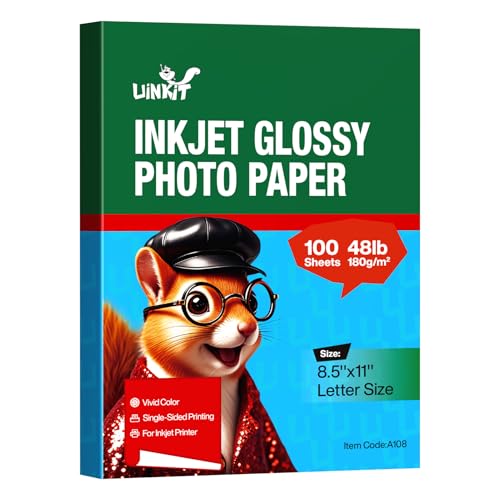
Uinkit 100 Sheets Inkjet Photo Paper Glossy 8.5×11 48lb 180Gsm Professional Photographic Paper Letter Size 8.5Mil Instant Dry Suitable for All Ink Printers
Only Use Dye Inkjet Printer :180gsm,8.5×11 professional inkjet quality single -side print photo paper ,100sheets/pack
As an affiliate, we earn on qualifying purchases.
As an affiliate, we earn on qualifying purchases.
Common Myths About DPI and PPI Debunked
Many people believe DPI and PPI are interchangeable or that higher numbers always mean better quality, but these myths can cause confusion. DPI (dots per inch) relates to how a printer applies ink or toner, while PPI (pixels per inch) measures digital image resolution.
Assuming higher numbers automatically improve print quality ignores factors like color calibration, which ensures colors are accurate and consistent across devices. Additionally, paper selection plays a vital role; a high-resolution image won’t look its best on rough or incompatible paper.
Believing that increasing DPI or PPI alone guarantees better results oversimplifies the process. Instead, understanding the distinct roles of these metrics and considering proper color calibration and paper choice leads to excellent print quality without falling for common myths.
When Should You Adjust DPI, and When Focus on PPI?
You should adjust DPI when your focus is on print quality or output size, especially for physical materials.
If you’re working with digital displays or screens, PPI becomes more important, considering how close you’ll view the content.
Think about the intended viewing distance and output medium to decide whether to prioritize DPI or PPI.
Print Quality vs. Display
Understanding when to adjust DPI versus focusing on PPI is essential for achieving ideal print quality and display clarity. If you’re preparing images for print, prioritize DPI adjustments, ensuring proper color calibration for vibrant, accurate colors. For screens, focus on PPI, which impacts sharpness and detail, especially when screen calibration is optimized.
| When to Adjust | Focus Area | Purpose | Key Action | Outcome |
|---|---|---|---|---|
| Printing | DPI | Detail & color accuracy | Adjust DPI for high-quality prints | Crisp, vibrant prints |
| Display | PPI | Sharpness & clarity | Increase PPI for detailed screens | Clear, crisp visuals |
| Both | Color calibration | Consistent appearance | Match color profiles | Accurate colors |
| Printing | Screen calibration | Color consistency | Calibrate monitor before printing | Better color matching |
| Display | Color calibration | Visual fidelity | Calibrate display regularly | Consistent display quality |
Output Size Considerations
When determining output size, choosing whether to adjust DPI or focus on PPI depends on the final medium and viewing distance.
For printed materials, your image resolution must align with printing technology to guarantee sharpness without unnecessary file size. If you’re printing at large sizes or close-up, increasing DPI helps maintain detail and clarity.
Conversely, for digital displays viewed from a distance, concentrating on PPI ensures the image appears crisp without overloading the resolution. Adjusting DPI is vital when fine detail matters, such as in photographs or detailed graphics.
However, for large-format prints or billboards, optimizing PPI avoids excessive file sizes and processing times.
Ultimately, understanding the relationship between image resolution, printing technology, and output size guides you to the right balance.
Intended Viewing Distance
The intended viewing distance directly influences whether to adjust DPI or focus on PPI for ideal image quality. If you’ll view the print from afar, such as large banners or posters, focus on PPI, making sure the resolution aligns with the printing materials’ capabilities.
At close distances, like photo prints or fine art, increasing DPI helps achieve sharp detail, especially where image compression might reduce clarity. Adjusting DPI is essential when printing on textured or specialty materials, as it compensates for surface irregularities.
Conversely, for large-format prints viewed from a distance, optimizing PPI prevents unnecessary file size increases without sacrificing perceived quality. Understanding your viewing distance ensures you choose the right balance between image compression, printing materials, and resolution, avoiding waste and achieving the best visual impact.
Tips to Optimize Your Images for Better Prints

To get the best print quality, start with high-resolution files that maintain sharp details. Make certain your color settings are accurate to ensure vibrant, true-to-life images. Additionally, paying attention to safe installation practices helps prevent issues like pixelation and color inconsistencies during printing. Properly preparing your images by file management ensures smooth printing workflows and consistent results. Before printing, resize your images to fit your paper size, which helps avoid pixelation and ensures a professional look. Being aware of print resolution standards can further enhance the clarity and quality of your final prints.
Choose High-Resolution Files
Ever wondered how choosing high-resolution files can dramatically improve your printed images? The key is ensuring good file quality from the start. High-resolution files contain more detail, which helps prevent pixelation and blurriness when printed.
When selecting images, look for files with a higher PPI or DPI, but don’t rely solely on numbers—check the actual pixel dimensions. This avoids unnecessary image scaling, which can reduce quality.
Scaling up a low-resolution image causes it to lose clarity, so it’s better to start with a file that matches your print size. Keep in mind, a high-quality file preserves sharpness and detail, ensuring your final print looks professional.
Always choose the highest resolution possible to achieve the best results. File quality and resolution are essential to ensure your images print clearly and accurately.
Use Proper Color Settings
Choosing high-resolution files is only part of achieving professional-quality prints; matching your images’ color settings guarantees they look their best once printed. Start with proper color calibration to ensure your monitor displays accurate colors, making your adjustments more reliable. Use color profiles that match your printer’s ink compatibility, which prevents color mismatches and dull results. Always embed the correct color space, like Adobe RGB or sRGB, depending on your workflow and printer specifications. Color management ensures consistent, predictable color output across all devices and print processes. Additionally, maintaining consistent color settings throughout your editing and printing workflow helps preserve color accuracy and reduces surprises in the final print. Avoid relying on auto-corrections that might distort colors. Instead, fine-tune your images with calibrated tools, ensuring your prints reflect your intended vision and achieve vibrant, true-to-life results. Paying attention to color profiles can further enhance the fidelity of your prints and prevent unwanted color shifts. Proper color calibration is essential for maintaining the integrity of your print colors from screen to paper.
Resize Before Printing
Have you ever printed an image only to find it blurry or pixelated? Before hitting print, resize your image to match your print size, not just your screen dimensions. Proper resizing guarantees your image has enough resolution for quality output, especially if your printer needs specific PPI settings. Also, check your print calibration to align colors and sharpness. Remember, paper quality affects final results—high-quality paper enhances detail and reduces blurriness. Use the following table to guide your resizing:
| Print Size | Ideal PPI | Image Dimensions |
|---|---|---|
| Small (4×6) | 300 | 1200×1800 pixels |
| Medium (8×10) | 300 | 2400×3000 pixels |
| Large (16×20) | 300 | 4800×6000 pixels |
Resizing carefully helps avoid pixelation, ensuring your prints are crisp and vibrant.
How Different Printers Respond to Resolution Settings
Different printers respond to resolution settings in ways that can considerably impact the final output quality. For example, some inkjet printers excel at reproducing vivid printer color, especially at higher resolutions, but may struggle with paper texture, causing ink to bleed or fade. Vetted inkjet formulations are designed to optimize color vibrancy and detail, emphasizing the importance of choosing compatible ink types. Conversely, laser printers often deliver sharp lines and consistent color, but their performance can plateau beyond certain resolution levels. The type of paper you choose also plays a role; rough or textured paper can reduce detail, regardless of resolution settings. Additionally, performance ratings based on factors like suction power and durability influence the overall printing results, so understanding how your printer interprets resolution helps you optimize print quality, whether you’re aiming for detailed photos or crisp text. Recognizing how printer technology responds to different resolution settings can help you make informed choices for your specific printing needs, especially when considering Free Floating technologies or materials.
Why the DPI Vs PPI Myth Still Persists—And How to Avoid It

Many people still confuse DPI (dots per inch) and PPI (pixels per inch), often using them interchangeably despite their distinct roles in digital and print media. This myth persists because it’s easy to associate resolution with print quality, leading to misconceptions about digital clarity.
The truth is, DPI affects how printers interpret image data, while PPI determines the detail level of your digital image. Misunderstanding these terms can cause you to choose incorrect settings, resulting in print outputs that look blurry or lack sharpness.
To avoid this, focus on using PPI to optimize image quality for digital displays and DPI to set appropriate print resolution. Clear knowledge of these differences guarantees your projects maintain the intended quality, preventing common pitfalls caused by the persistent DPI vs PPI myth.
Frequently Asked Questions
Can Changing DPI Improve Digital Image Quality?
Changing DPI doesn’t improve digital image quality on screens, since screens are calibrated by PPI, not DPI.
DPI affects print resolution standards, which determine how detailed your print will look.
If you want a sharper digital image, focus on proper digital screen calibration and using high-resolution images.
Adjusting DPI only impacts printing quality, not how your image appears digitally.
Is PPI Relevant for Online Images or Only Prints?
PPI is mainly relevant for digital image display, not just prints. When you view images online, your device’s screen resolution and pixels per inch influence how sharp and clear the image looks.
Higher online image resolution with appropriate PPI guarantees your images appear crisp on different screens. So, focusing on PPI helps optimize the quality of your digital images for online viewing, making them look better across various devices.
Are Higher DPI Settings Always Better for Printing?
Higher DPI settings aren’t always better for printing, especially if you want better color accuracy and a pleasing paper texture. Increasing DPI can improve detail, but only up to a point where the printer and paper can handle it.
Overdoing it might result in unnecessary ink use and no noticeable quality gain. Focus on balancing DPI with your paper type and desired finish to get the best print results.
How Does Monitor Resolution Affect Perceived PPI?
Your monitor resolution directly impacts how you perceive pixel density and display clarity. A higher resolution increases pixel density, making images sharper and text clearer, especially on larger screens.
When your monitor’s resolution is lower, pixels appear more noticeable, reducing perceived sharpness. So, choosing a high-resolution display enhances your viewing experience by providing better pixel density and overall display clarity, making everything you see more detailed and crisp.
Can I Use DPI and PPI Interchangeably?
You can’t use DPI and PPI interchangeably because they serve different purposes.
PPI measures your image’s pixel density on screens, affecting how sharp it looks during image scaling.
DPI, on the other hand, relates to print resolution, impacting print quality.
Confusing the two can lead to poor print results or blurry images.
Always match your PPI for digital display with your intended print DPI to guarantee maximum clarity and quality.
Conclusion
Understanding the difference between DPI and PPI helps you make better printing choices. Don’t get caught up in myths—know when to adjust each setting for ideal quality. Focus on your image resolution and printer capabilities to achieve sharp, professional-looking prints. By applying these tips, you’ll avoid common mistakes and get the best results every time. Keep learning and experimenting—your perfect print is just a few adjustments away.